Export & import settings
When should I export settings? == == == == == == == == == == == == == == == == == == == == == == == == == == == == == == == == == == == == == == == Be prepared for the unforeseen. You might change important settings by accident and have problems to undo the changes. Your phone might break or get stolen. To easily return to status you’ve been at, settings should be exported on a regular basis.
Best practice is to export after change of settings or completing an objective.
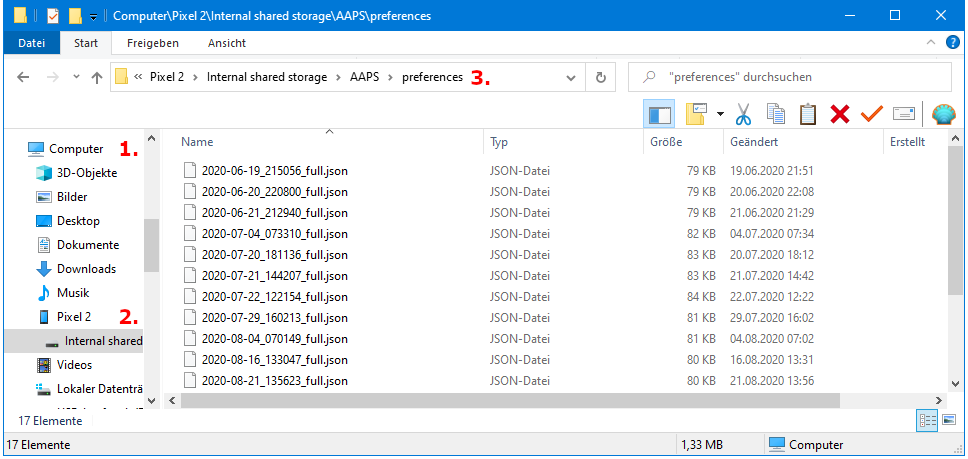
Exported settings should be copied to a cloud storage or your computer. So you are prepared for loss or damage of your AAPS phone and do not have to start from zero.
On a Windows 10 computer it looks like this:
Exported information == == == == == == == == == == == == == == == == == == == == == == == == == == == == == == == == == == == == == == == Among others the following information is part of the settings export:
- Automation events
- Config builder settings
- Local profile settings
- Objectives status incl. exam results
- Preferences incl. NS Client settings
Encrypted backup format == == == == == == == == == == == == == == == == == == == == == == == == == == == == == == == == == == == == == == == Settings backup is encrypted by a master password that can be set in Preferences .
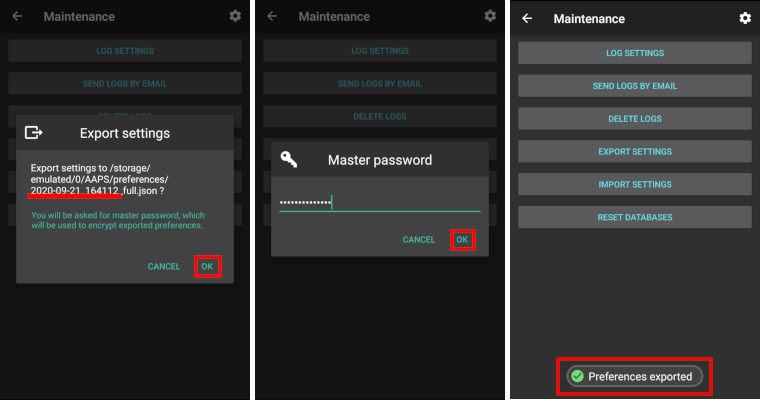
Eksport ustawień == == == == == == == == == == == == == == == == == == == == == == == == == == == == == == == == == == == == == == == * Menu “hamburger” (trzy poziome kreski w lewym górnym narożniku ekranu) * Konserwacja * Eksport ustawień

- Date and time of export will be added to the file name automatically and displayed together with the path.
- Click ‘OK’.
- Enter master password and click ‘OK’.
- Successful export will be prompted at bottom of the screen.
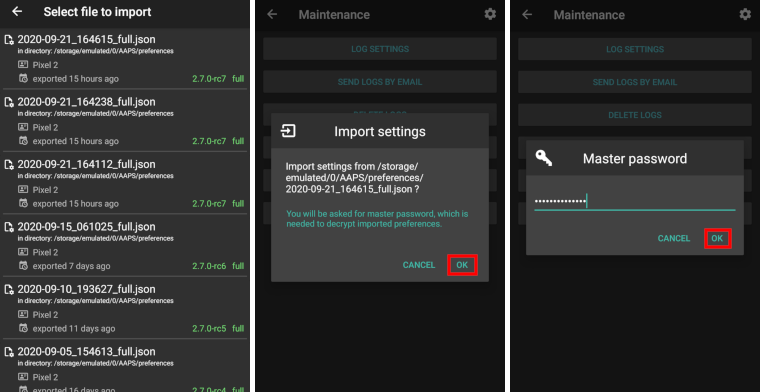
Zaimportuj ustawienia == == == == == == == == == == == == == == == == == == == == == == == == == == == == == == == == == == == == == == == * Menu “hamburger” (trzy poziome kreski w lewym górnym narożniku ekranu) * Konserwacja * Zaimportuj ustawienia

- All files from folder AAPS/preferences/ on your phone will be shown in the list.
- Select file.
- Confirm import by clicking ‘OK’.
- Enter master password and click ‘OK’.
- Details on the preference file will be shown.
- Last option to cancel import.
- Click ‘Import’.
- Confirm message by clicking ‘OK’.
- AAPS will be restarted in order to activate imported preferences.
Note for Dana RS users
- Ponieważ importowane są także ustawienia połączenia pompy, AAPS na twoim nowym telefonie będzie już “znał” pompę i dlatego nie rozpocznie skanowania bluetooth.
- Please pair new phone and pump manually.
Import settings from previous versions (before AAPS 2.7)
- The “old” settings file (called ‘AndroidAPSPreferences’ - without file extension) must be in root folder of your smartphone (/storage/emulated/0).
- Do not put the “old” file in the same folder as the new exported settings (AAPS/preferences).
- You will find the “old” file on the bottom of the list in the import dialogue.
Transfer settings file == == == == == == == == == == == == == == == == == == == == == == == == == == == == == == == == == == == == == == == * Best way to transfer settings file to a new phone is via USB cable or cloud service (i.e. Google Drive). * Manuals can be found on the web, i.e. Android help pages. * If you experience problems with the transferred file try another way to transfer file.