Aktualizacja do nowej wersji lub inny branch
Build yourself instead of download
AndroidAPS is not available as download due to regulation for medial devices. It is legal to build the app for your own use but you must not give a copy to others! See FAQ page for details.
Important notes
- Please update as soon as possible after a new release is available. You will receive an information on the AndroidAPS home screen about the new version.
- As of version 2.3 you have to use git to update. Updating via zip file does not work anymore.
- As of version 2.7 repository location changed to https://github.com/nightscout/AndroidAPS. If you are not familiar with git the easiest way for update is remove directory with AndroidAPS and do a new clone.
- Please use Android Studio Version 4.0.1 or newer to build the apk.
- Windows 10 32-bit systems are not supported by Android Studio 4.0.1.
- If you are using xDrip make sure to identify the receiver.
- If you are using Dexcom G6 with the patched Dexcom app you will need the version from the 2.4 folder.
Quick walk-through for experienced users
Please skip this paragraph if you update for the first time. The quick walk-through is for experienced users. Your next step would be to install git if you do not have it already.
If you already updated AAPS in previous versions and use a Windows PC you can update in four simple steps:
- Export your settings from the existing AAPS version on your phone to be on the save side
- Update local copy (VCS->Git->Pull)
- Generate signed APK (Select ‘app’ instead of ‘wear’ on your way!)
- Depending on your BG source make sure to identify receiver in xDrip or use the patched Dexcom app from the 2.4 folder.
Install git (if you don’t have it)
Follow the manual on the git installation page.
Update your local copy
As of version 2.7 repository location changed to https://github.com/nightscout/AndroidAPS. If you are not familiar with git the easiest way for update is remove directory with AndroidAPS and do a new clone.
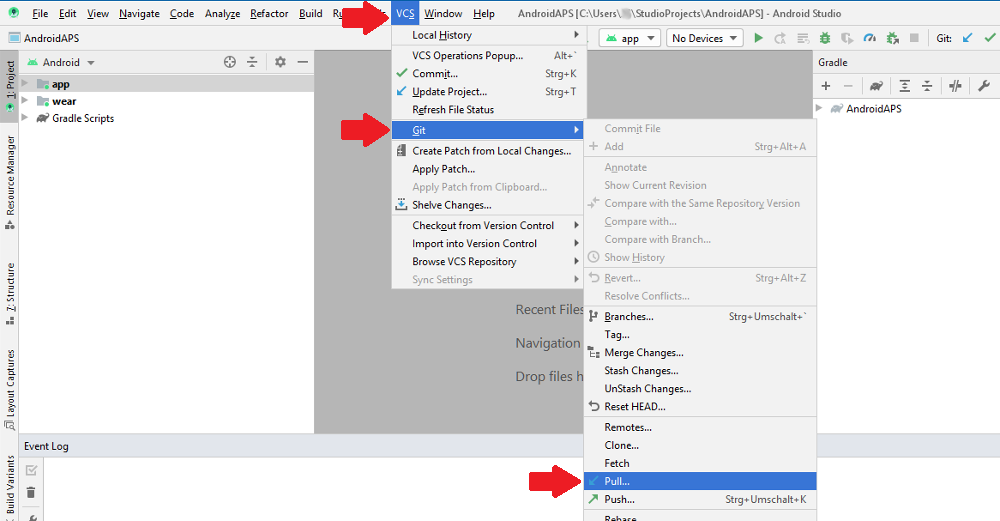
Click: VCS -> Git -> Pull
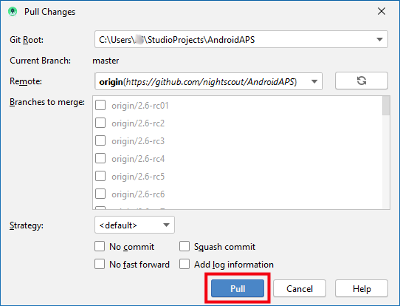
Click Pull (no changes in dialog field)
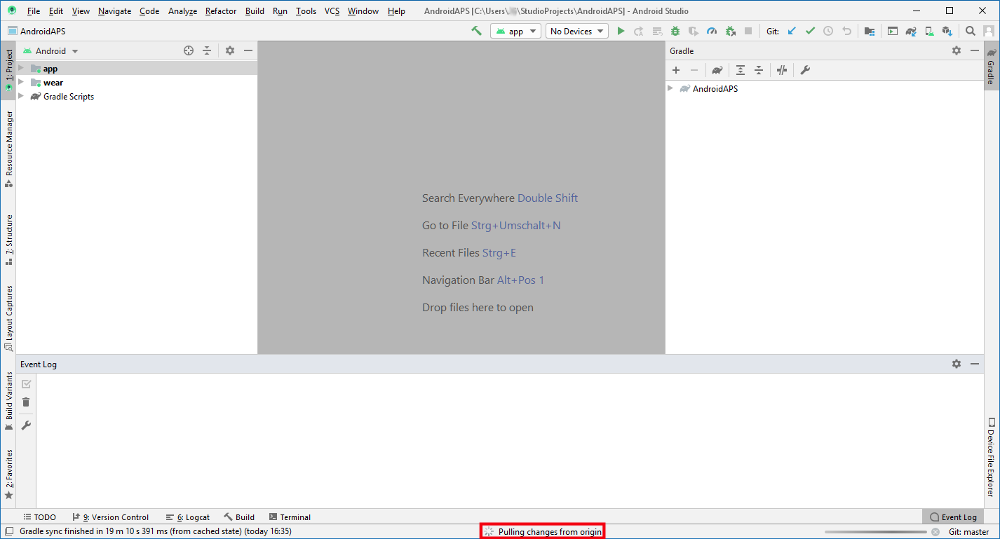
Wait while download is in progress.
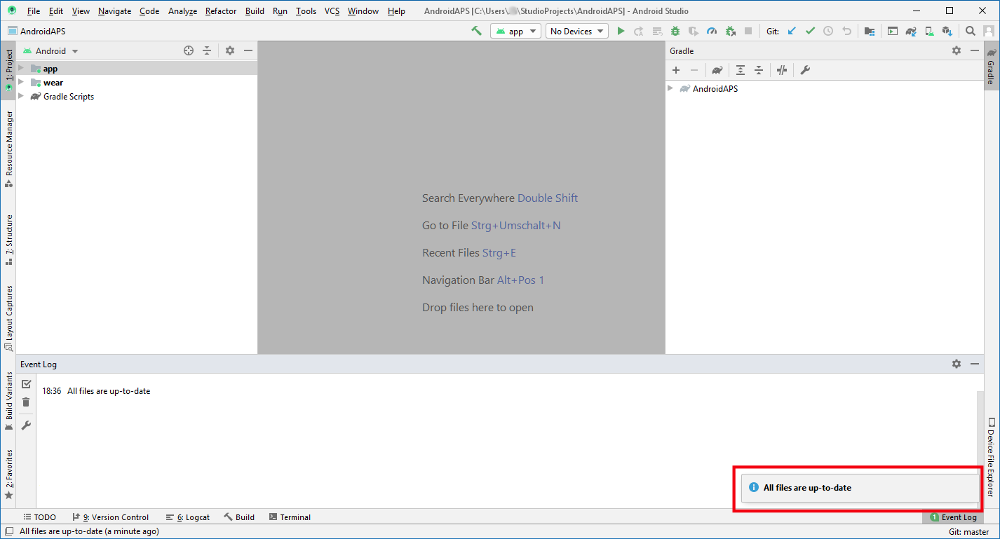
When done Android Studio will inform you that “all files are up-to-date”.
Generate signed APK
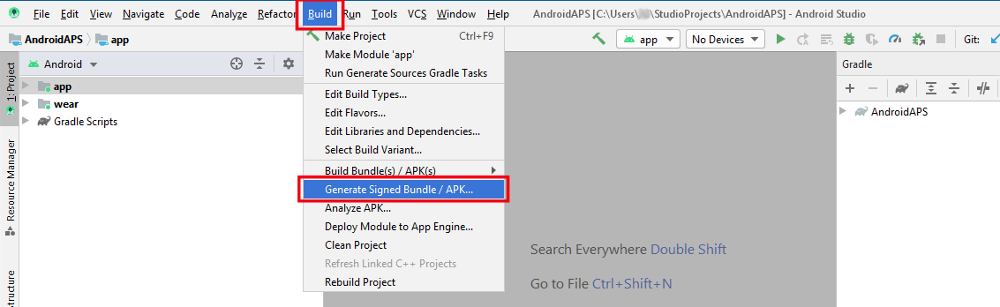
- Click “Build” in the menu bar and select “Generate Signed Bundle / APK...”.
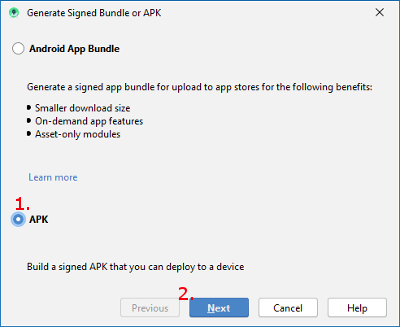
- Select “APK” (1.) instead of “Android App Bundle” and click “Next” (2.).
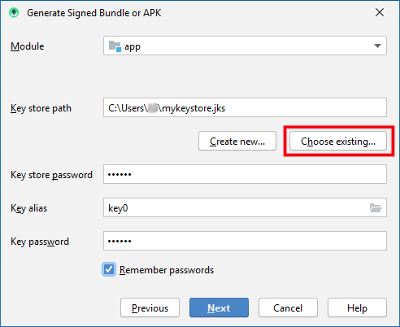
- Make sure that module is set to “app”.
- Select your key store path by clicking on “Choose existing...”.
- Enter your passwords for key store and key.
- If the box to remember passwords is checked you don’t have to enter them. In case the box was not checked during last build and you cannot remember the passwords refer to the troubleshooting section.
- Click “Next”.
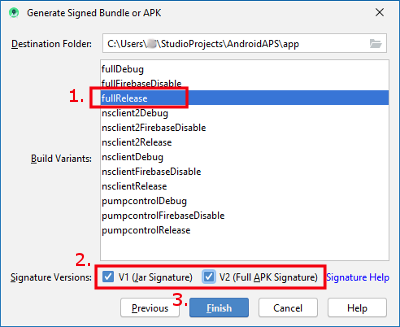
- Select build variant “fullRelease” (1.).
- Check boxes V1 and V2 for signature versions (2.).
- Click “Finish”. (3.)
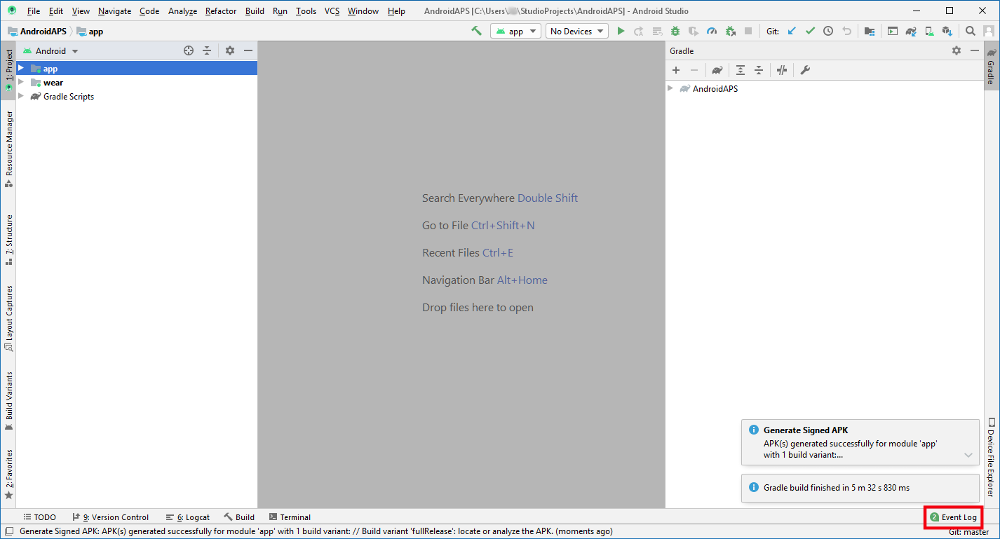
- Android Studio will display the information “APK(s) generated successfully...” after build is finished.
- In case build was not successful refer to the troubleshooting section.
- Easiest way to find the apk is to click on “Event log”.
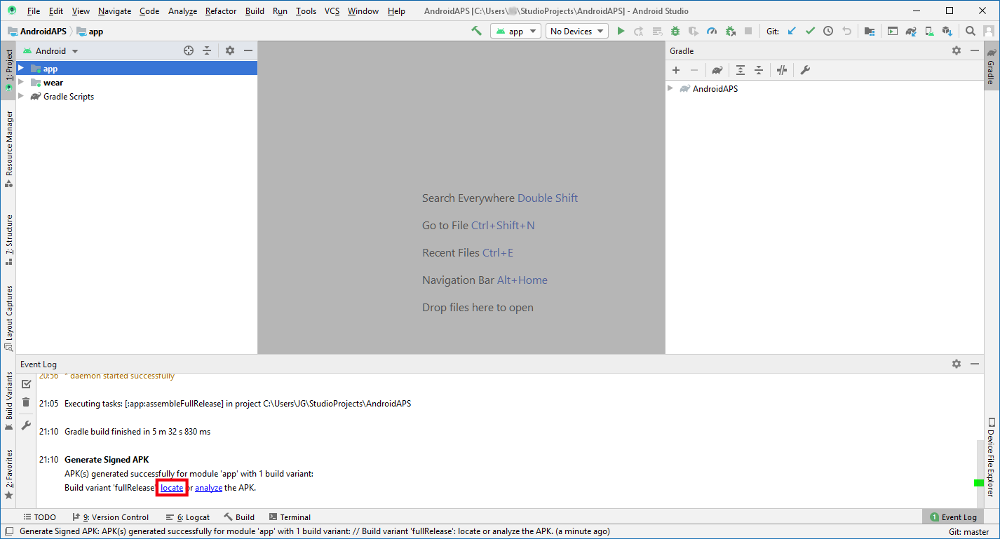
- In the event log section click “locate”.
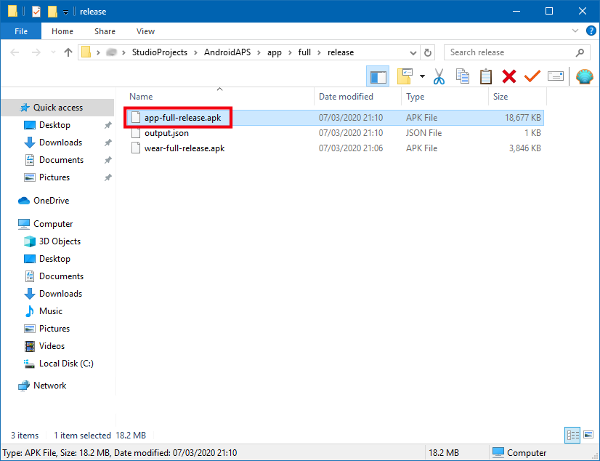
- app-full-release.apk is the file you are looking for.
Transfer APK to smartphone
Easiest way to transfer app-full-release.apk to your phone is via USB cable or Google Drive. Please note that transfer by mail might cause difficulties and is not the preferred way.
On your phone you have to allow installation from unknown sources. Manuals how to do this can be found on the internet (i.e. here or here).
Check AAPS version on phone
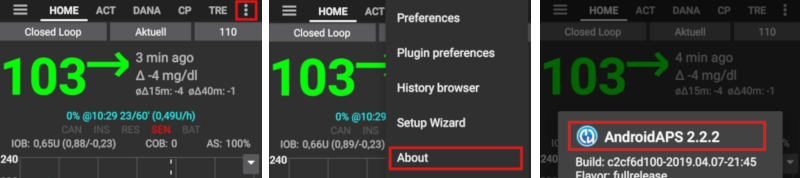
You can check the AAPS version on your phone by clicking the three dots menu on the top right and then about.
Rozwiązywanie problemów
See separate page troubleshooting Android Studio.