설정 저장하기 & 불러오기
언제 설정을 저장해야합니까?
예상치 못한 일에 대비해야합니다. 실수로 중요한 설정을 변경하고 변경사항을 되돌리는데 어려움이 있을 수 있습니다. 당신의 폰이 고장나거나 도난당할 수도 있습니다. 쉽게 원래상태로 설정을 복구하기 위해서, 규칙적으로 설정을 저장하여야 합니다.
설정을 변경한 후 또는 목표를 수행한 후 설정을 저장하는 것은 아주 좋은 습관입니다.
설정된 파일은 클라우드 혹은 본인의 컴퓨터에 복사해놓으세요. 그래야 AAPS 폰이 예상치못한 피해가 발생했을때를 대비할 수 있고 처음부터 다시 시작할 필요가 없습니다.
윈도우 10에서 아래와 같이 보일 수 있습니다.
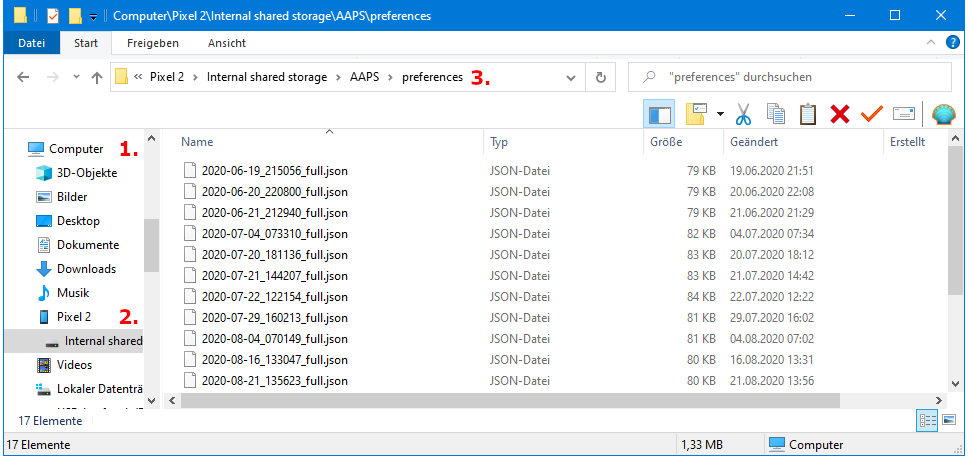
Exported information
Among others the following information is part of the settings export:
- Automation events
- Config builder settings
- Local profile settings
- Objectives status incl. exam results
- Preferences incl. NS Client settings
Encrypted backup format
Settings backup is encrypted by a master password that can be set in Preferences .
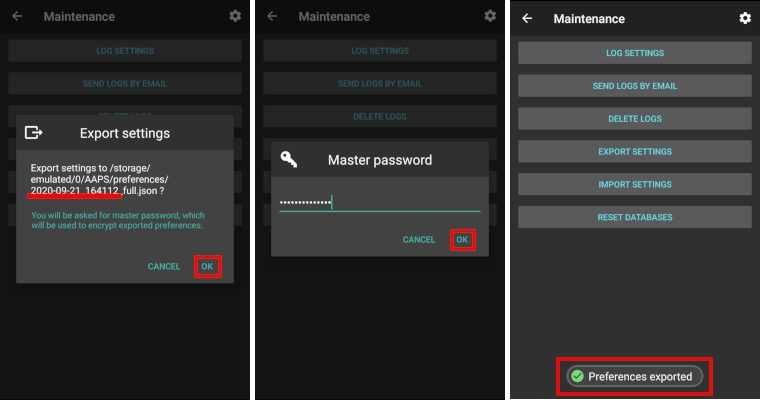
설정 내보내기
- 화면 좌측 상단부의 三아이콘을 누릅니다
- 정비를 누릅니다
- 설정 저장하기를 누릅니다

- Date and time of export will be added to the file name automatically and displayed together with the path.
- Click ‘OK’.
- Enter master password and click ‘OK’.
- Successful export will be prompted at bottom of the screen.
설정 불러오기
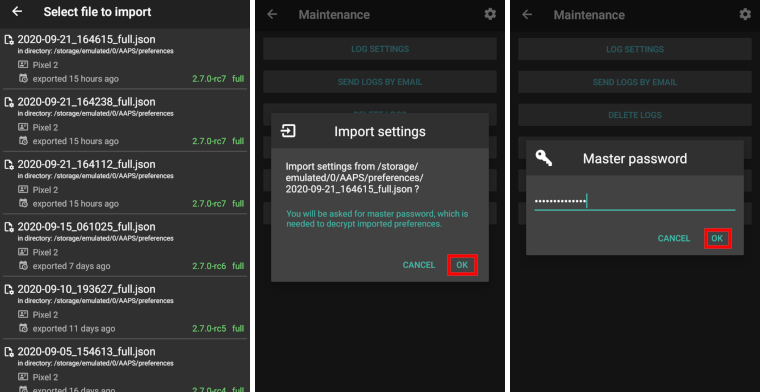
- 화면 좌측 상단부의 三아이콘을 누릅니다
- 정비를 누릅니다
- 설정 불러오기

- All files from folder AAPS/preferences/ on your phone will be shown in the list.
- Select file.
- Confirm import by clicking ‘OK’.
- Enter master password and click ‘OK’.
- Details on the preference file will be shown.
- Last option to cancel import.
- Click ‘Import’.
- Confirm message by clicking ‘OK’.
- AAPS will be restarted in order to activate imported preferences.
Note for Dana RS users
- 펌프 연결 설정 역시 새 폰에 불러와지기 때문에, 새 폰은 펌프가 이미 연결되어 있는 것으로 “착각”하게 되고 블루투스 스캔을 시작하지 않게 됩니다.
- Please pair new phone and pump manually.
Import settings from previous versions (before AAPS 2.7)
- The “old” settings file (called ‘AndroidAPSPreferences’ - without file extension) must be in root folder of your smartphone (/storage/emulated/0).
- Do not put the “old” file in the same folder as the new exported settings (AAPS/preferences).
- You will find the “old” file on the bottom of the list in the import dialogue.
Transfer settings file
- Best way to transfer settings file to a new phone is via USB cable or cloud service (i.e. Google Drive).
- Manuals can be found on the web, i.e. Android help pages.
- If you experience problems with the transferred file try another way to transfer file.